
If you’ve ever stayed late after school answering emails, reorganizing files, or trying to find that one document from last year, you’re not alone. These Google tips for teachers are designed to help you reclaim your time and energy.
Teaching is full of moving parts, and the behind-the-scenes tasks can take up as much time as actual instruction. The good news? You don’t need new tech skills or hours of setup to streamline your workflow. By using Google’s built-in tools you already have, you can transform your daily routines, reduce administrative burdens, and create a more organized and engaging learning environment for your students.
Table of Contents
Toggle4 Google Tips to Help You Streamline Lesson Planning
Pageless mode in Google Docs
Google Docs is one of the easiest ways to collaborate and organize your lessons. I love using Pageless Mode for lesson plans because it keeps everything clean and scrollable without worrying about page breaks. Once you set up one solid agenda or worksheet template, you can duplicate it weekly and spend more time teaching instead of formatting.
Tabs in Google Docs
Use tabs in Google Docs to keep a running agenda or lesson plans. Organize the tabs by week or unit so that you can have all of your lessons in one place. You’ll be able to quickly find what you need just by looking in the sidebar.
Daily Agendas in Google Slides
Use Google Slides to plan out your lessons and pacing. By keeping everything in the same template, you can have a running daily agenda for students to find assignments and notes. It’s so easy to add links to a single Google Slide and share in your Google Classroom.
Google Keep
If you’re like me and think of great lesson ideas in the car or at 11pm, Google Keep is your best friend. It’s perfect for jotting down thoughts, creating checklists, and keeping everything organized with labels. You can even set reminders, which means fewer sticky notes and mental to-dos floating around.
How to Stay Organized with Google Drive and Calendar
A cluttered Google Drive can be just as overwhelming as a cluttered desk. Spend a few minutes setting up a simple system (folders by course, unit, or semester) and stick with it. The search bar in Drive is also incredibly powerful, so even if you can’t remember exactly what you named a file, you can find it by keyword or author.
Naming Conventions
Having a consistent naming system like “Unit1_Lesson3_Notes” might sound small, but it makes searching so much faster. Pair your Docs with Google Slides for quick visuals or guided notes. Just link your lesson plan right inside the document so everything stays connected.
Folders
If labeling every document consistently feels overwhelming because you already have hundreds of note pages and worksheets in your Google Drive, start with just folders. Make sure that every lesson (or even just unit) has a specific naming convention. Every unit or lesson should have a folder with a specific naming convention.
Google Calendar
Once your materials are in order, connect a Google Calendar to your curriculum map. You can drop in unit start dates, major assessments, and PD days to see your semester at a glance. If you share a separate calendar with students, it’s also an easy way to keep them in the loop without needing to send extra reminders.
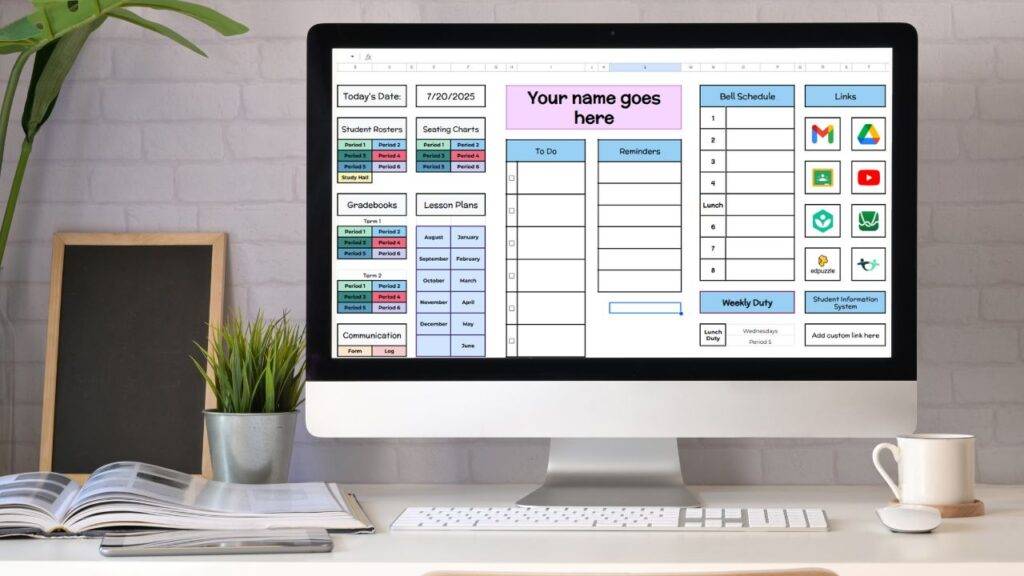
Want to start implementing some of these Google tips in your classroom tomorrow? My Google Sheets teacher planner has monthly/weekly lesson planners, gradebooks, a parent communication log, to do lists, seating charts, and class rosters (all in one place)!
Simplify Grading and Feedback with Google Sheets
Gradebooks
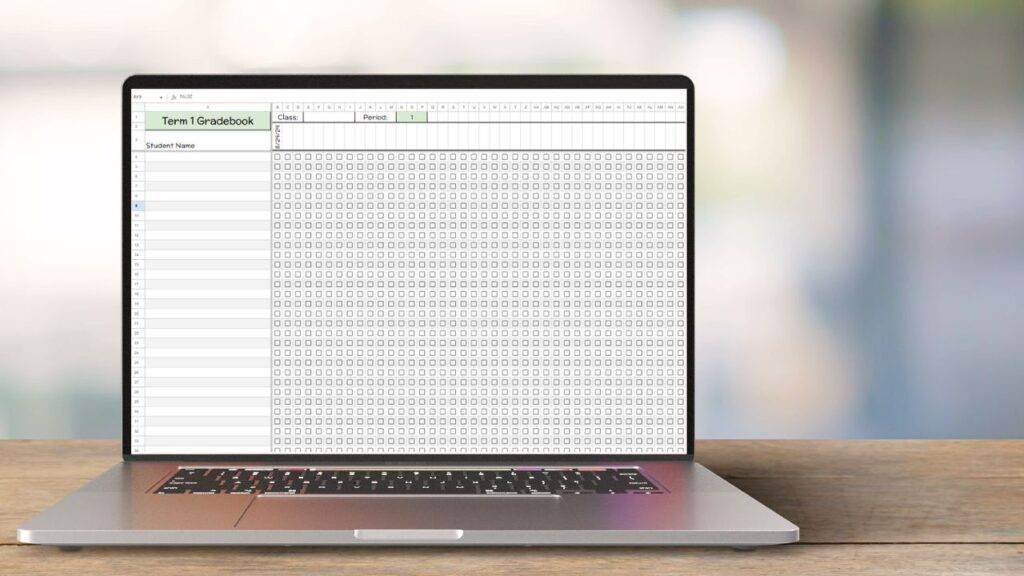
If you’ve ever spent your prep period buried in grading, Google Sheets can make a huge difference. You can build a simple gradebook that automatically calculates averages or highlights missing assignments with conditional formatting.
Tracking student work
Google Classroom brings everything together. You can post assignments, share links, and track student work in one place. I love that it syncs with Google Drive and Forms, so all of your materials are automatically organized by class.
The “To-Do” and “Missing” tabs are a lifesaver for keeping both teachers and students accountable. You’ll spend less time tracking down late work and more time actually connecting with students about their progress.
Communicate Efficiently with Gmail
Schedule emails
Scheduling emails in advance lets you write messages when it’s convenient for you. This will help you set boundaries with parents and guardians, so they don’t expect to hear from you outside of school hours even if that’s when you’re answering emails.
Email templates
I also recommend creating templates for messages you send often, like parent updates or field trip reminders. You’d be surprised how much time you could save by just pasting in a template and changing a few details.
Final Thoughts About These Google Tips
The real magic happens when you connect all these tools. You can write your lesson plan in Docs, link your Slides presentation, store both in Drive, schedule the lesson in Calendar, and add your reflection notes to Keep.
It’s not about doing more. It’s about letting your systems do more for you.
You don’t have to master every Google tool to be efficient. Start small with one or two of these Google tips like organizing your Drive folders or scheduling a few emails for next week.
Those little changes add up, and before long, you’ll find that your workday feels lighter, smoother, and more focused. Because when you spend less time managing the details, you get to spend more time teaching.